 Panewise
Coming from Windows?
Snap Assist, for the Mac.
On Windows, when you snap a window to one side, Snap Assist offers your other windows to fill the rest of the screen. Panewise brings that same flow to macOS — and it's free.
How it works
- Drag a window to the left or right edge of the screen (or press ⌃⌥←).
- The other half fills with live previews of your open windows.
- Click one — or start typing its name and press Return. Both windows now share the screen.
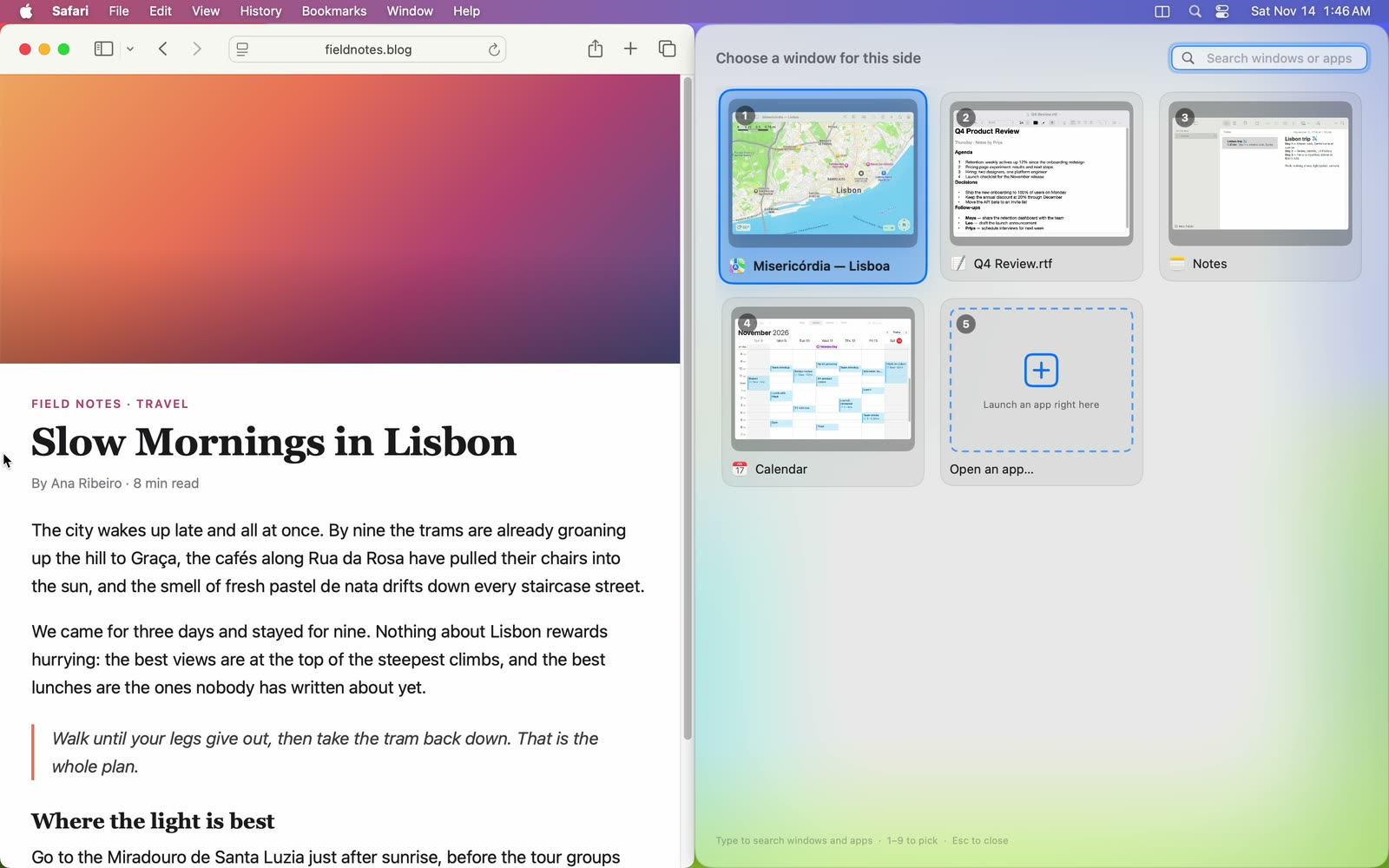
Drag to a corner for a quarter, or to the top of the screen for layouts such as thirds, 60/40 and a grid — the picker fills each slot in turn.
Doesn't macOS already tile windows?
Since macOS Sequoia, you can drag a window to a screen edge to tile it. What it doesn't do is help you choose what goes next to it — that's the part of Snap Assist people miss. Panewise adds it, and on first launch it offers to switch off the built-in edge tiling so the two don't compete for the same drag.
What Panewise is built around
- Snap one side, pick the other. Drag a window to an edge (or use a shortcut) and the empty half fills with live previews of your other windows. Click one, or type a few letters and press Return.
- Type to launch. If the app you want isn't open, type its name in the picker and Panewise opens it straight into the empty half.
- A divider you can grab. Once two windows share an edge, hover the border to resize both at once, double-click to even them out, or swap sides.
- Snap groups. Click one window and its partner comes forward too; move the pair to another display together.
- Layouts beyond halves. Drag to the top of the screen for 60/40, thirds, main + stack or a grid, and the picker fills each slot in turn.
- Undo. ⌃⌥Z puts the last moved windows back exactly where they were.
Windows shortcuts vs Panewise
| Action | Windows | Panewise on Mac |
|---|---|---|
| Snap left / right | ⊞ + ← / → | ⌃⌥← / → |
| Maximise | ⊞ + ↑ | ⌃⌥↩ |
| Fill the other half | Snap Assist | The picker, with live previews |
| Resize both snapped windows | Drag the shared border | Drag the divider |
All Panewise shortcuts can be changed in Settings.
Download Panewise free
macOS 14 or later · Apple silicon & Intel · Notarized by Apple